The ad-free remote for LG webOS projectors and TVs
Beam Remote is a free iPhone app that controls your LG webOS projector or TV directly over your home Wi-Fi. No account, no server, no ads, no analytics. Open source.
Download on the App Store View on GitHub
What it is
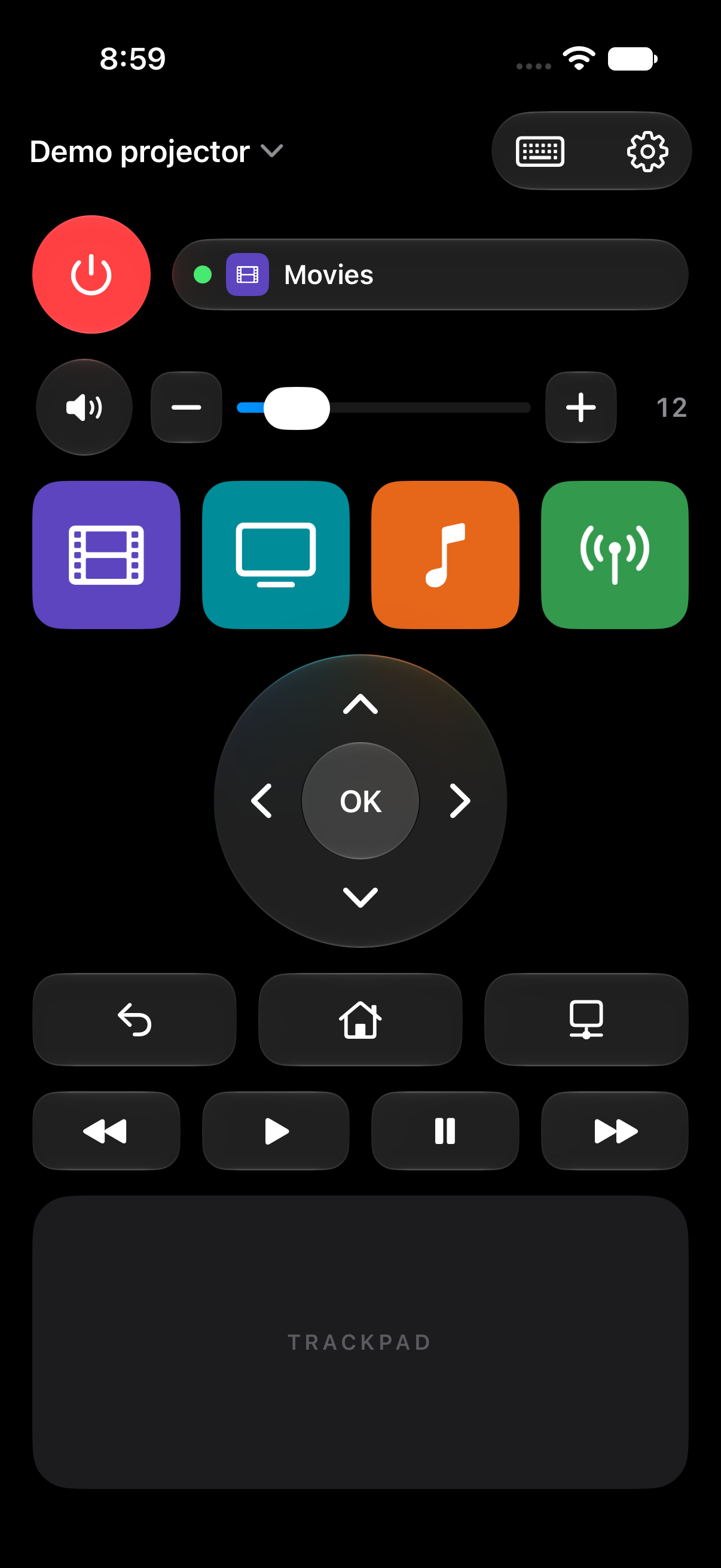
Beam Remote is an ad-free iPhone remote for LG webOS projectors and TVs. It is laid out like the physical remote that ships with the LG CineBeam Q, so every Button is where your thumb expects it. The iPhone talks to your Device directly on your network: there is no Beam Remote server and no account to create.
- Power and Wake: turn the Device off, and Wake it again from standby over the network.
- Volume: up, down and mute, with the current level shown on the Remote.
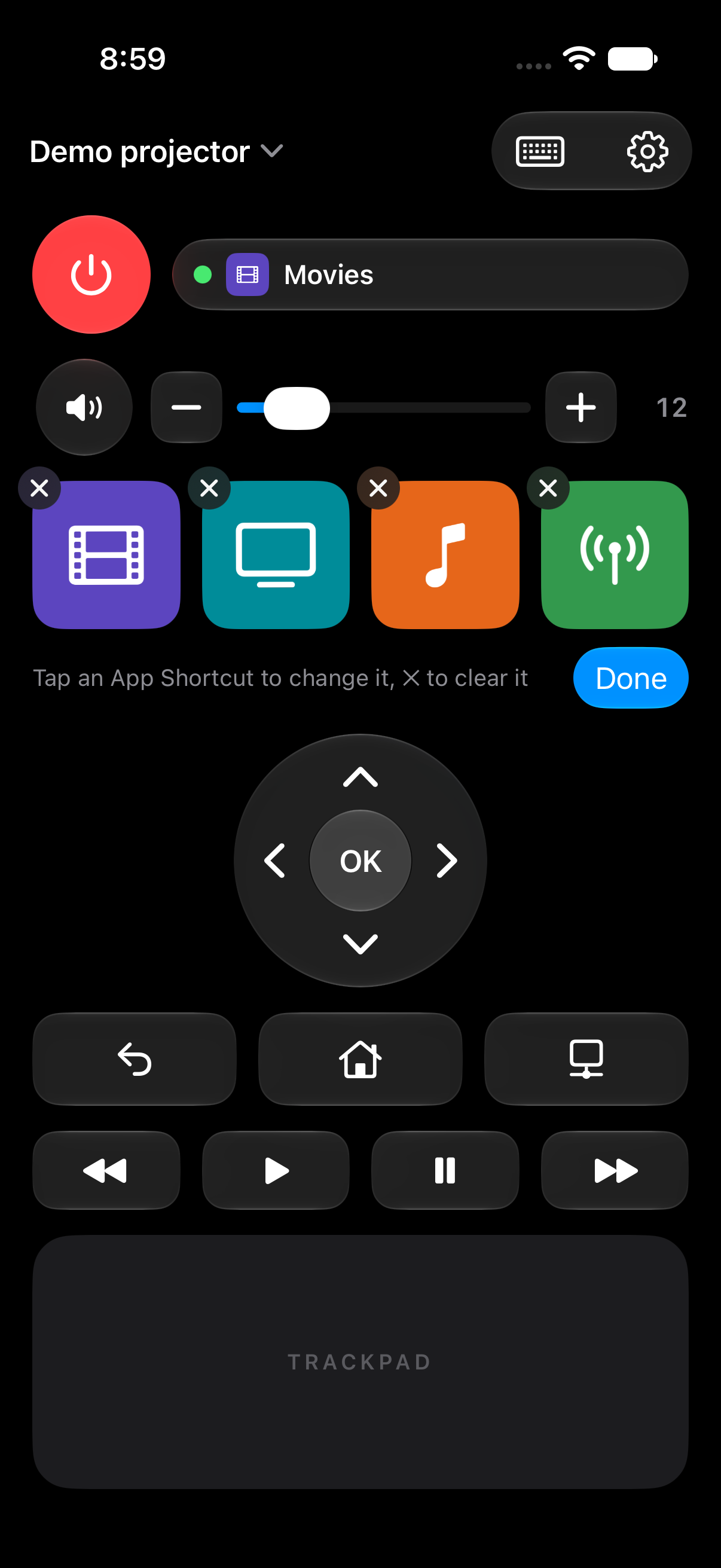
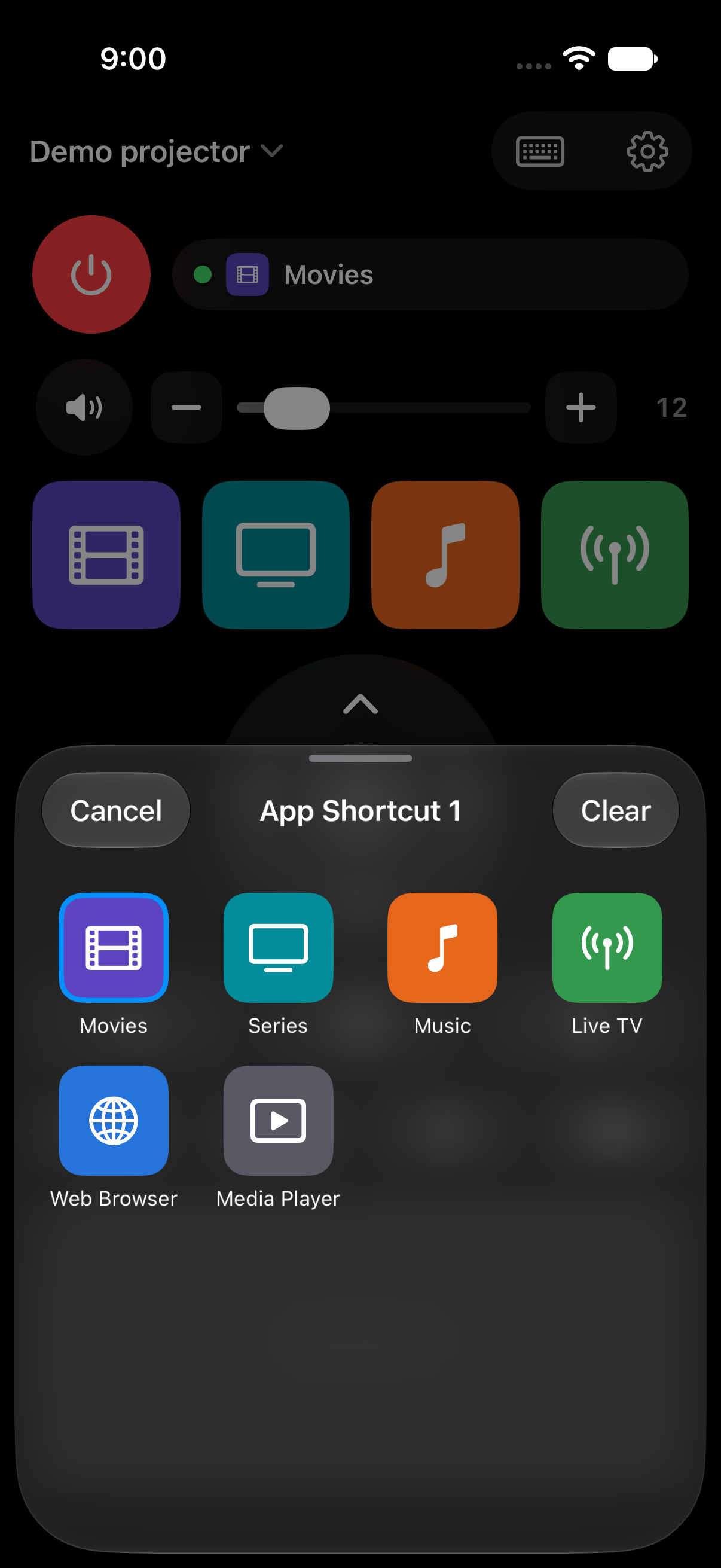
- Four App Shortcuts: choose which app each one launches, from the list of apps installed on your Device.
- Navigation: a ring with OK, plus Back (hold to exit) and Home.
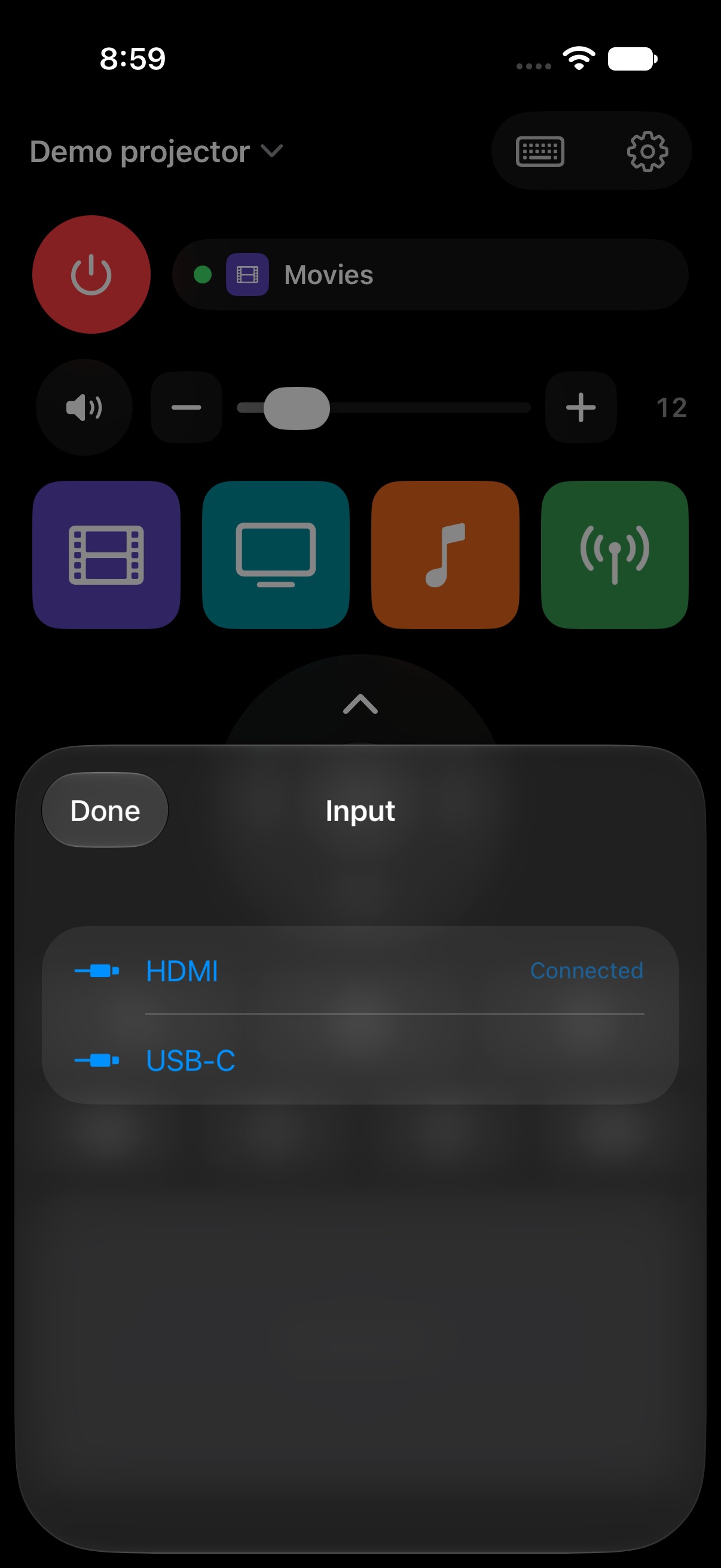
- Input: switch between HDMI, USB-C and the Device’s other connections.
- Media Buttons: play, pause, rewind and fast forward.
- Trackpad: move the on-screen pointer, tap to click and scroll, like the physical remote’s pointer.
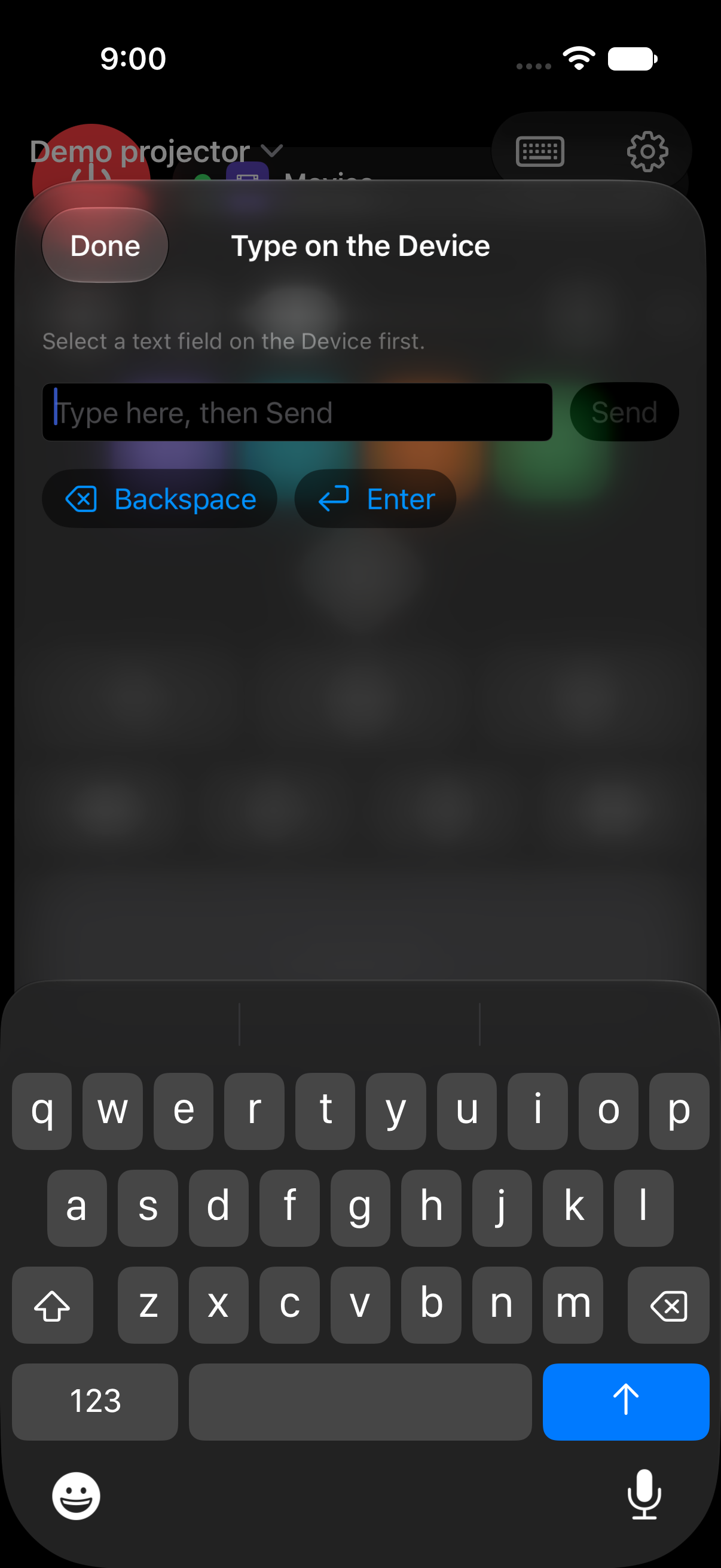
- Keyboard: type on your iPhone when a text field is focused on the Device, instead of hunting letters with arrow keys.
- Siri and Shortcuts: say “Turn on the projector with Beam Remote”, open an app, set the volume or mute, and use them in your own automations.
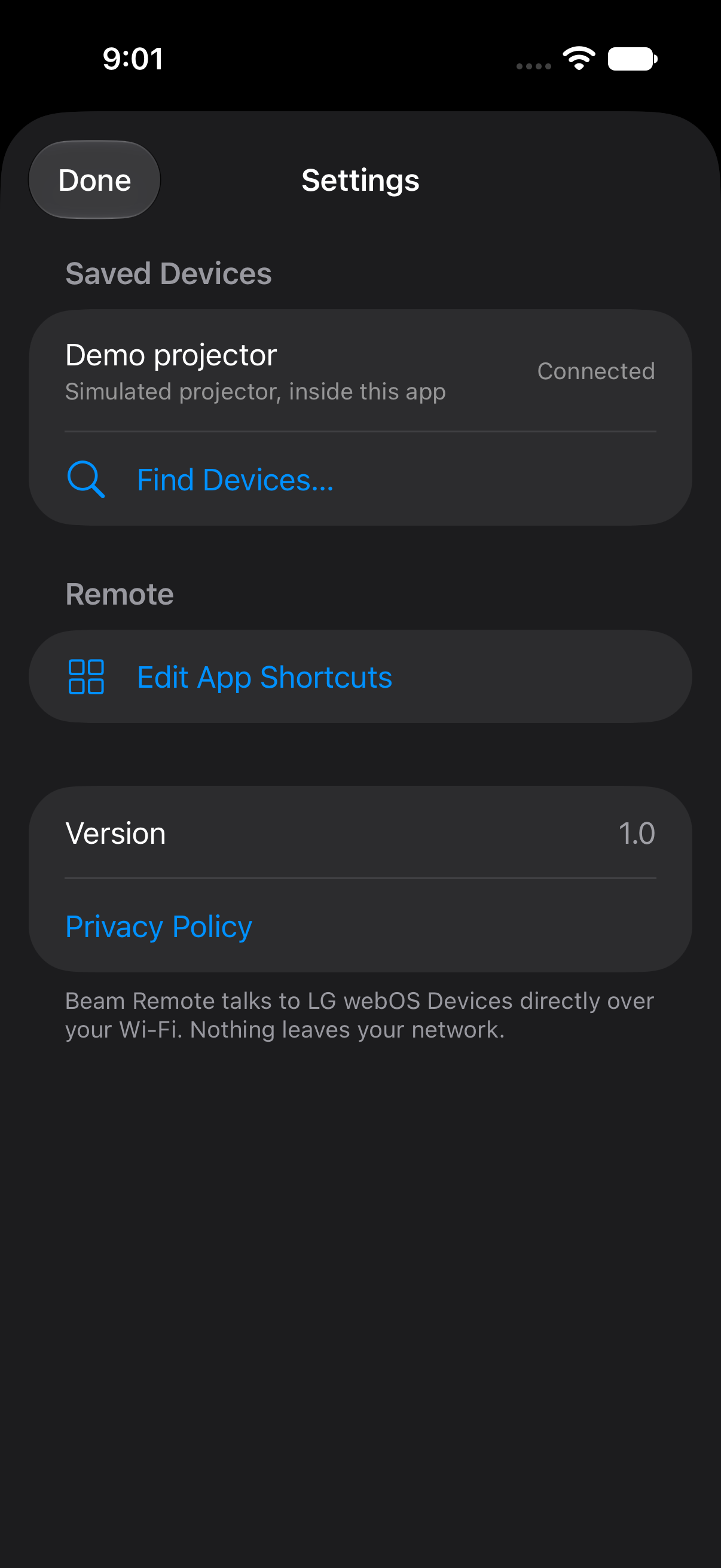
- Saved Devices: switch between Devices from the title bar; the app reconnects to the last one you used.
- Light haptic feedback on every press.
How Pairing works
- Open the app. It looks for LG webOS Devices on the Wi-Fi your iPhone is on. Allow Local Network access when iOS asks.
- Tap Pair next to your Device.
- Choose Accept on the Device’s screen. That is it. Pairing happens once per Device; after that Beam Remote remembers it as a Saved Device and reconnects every time you open the app.
If your Device does not show up, you can add it by its IP address.
Supported Devices
- LG projectors and TVs running webOS 3 and up.
- Tested on the LG CineBeam Q HU710PB-GL. Other Devices use the same protocol but have had less testing.
- Your iPhone and the Device need to be on the same Wi-Fi network.
- Wake works when the Device is in networked standby; some Devices need Mobile TV On or Quick Start+ turned on in their own settings.
How it compares
| Beam Remote | LG ThinQ app | Typical ad-funded remote apps | |
|---|---|---|---|
| Price | Free | Free | Free with ads, or a subscription |
| Ads | None | Not a remote-only app: also promotes LG services | Yes |
| Account | None | LG account | Often an account or a paywall |
| Works on the home network, without a cloud server | Yes, direct to the Device | Depends on the Device and setup | Usually, but some route through their own servers |
| Open source | Yes | No | No |
| Siri and Shortcuts | Yes | Limited | Rarely |
Comparison as of October 2026, written by the author of Beam Remote. Other apps change; check before you decide. The LG ThinQ app does much more than act as a remote (appliances, account features), so this table compares only the remote-control experience.
Privacy
Beam Remote collects nothing. It has no account, no server and no analytics, and it contains no third-party code or trackers. The app talks only to the Device you control, on your own network; the pairing key for each Saved Device is kept in the iPhone Keychain, on that phone only. The App Store privacy label is “Data Not Collected”. Read the full privacy policy.
Frequently asked questions
Why does iOS ask for Local Network access?
Beam Remote talks straight to your Device over your home Wi-Fi, and iOS requires your permission before any app can reach other devices on your network. Allow it on first launch. Without it the app cannot find or control your Device. If you tapped Don’t Allow, turn it back on in Settings → Privacy & Security → Local Network → Beam Remote.
Why won’t my Device turn on from the app (Wake)?
Wake works only while the Device is in networked standby, meaning it still listens on the network while it looks switched off. Some Devices need Mobile TV On or Quick Start+ enabled in their own settings. Turn that on, put the Device into standby once, and try Wake again.
Why does the app scan my Wi-Fi instead of using SSDP?
SSDP discovery needs a special multicast entitlement from Apple that is not part of version 1. Instead, Beam Remote checks the addresses on the subnet your iPhone is on, looking for LG webOS Devices. It only asks each address whether it is a webOS Device and reads nothing else from your network.
The app does not find my Device. What now?
Check that your iPhone and the Device are on the same Wi-Fi network (not a guest network, and not a separate 5 GHz or mesh network that isolates clients), that Local Network is allowed for Beam Remote, and that the Device is on rather than in deep standby. Then open Settings → Find Devices… and try again. You can also add the Device by its IP address.
Does it work with LG TVs, not just projectors?
Yes, in principle: Beam Remote speaks the protocol of LG webOS (version 3 and up), which projectors and TVs share. It was built and tested on the LG CineBeam Q HU710PB-GL, so TVs are less tested. If something does not work on your TV, please open an issue with the model.
Is there an Apple Watch app?
Not yet. It is planned for a later release and is not in version 1.
More help is on the support page.
Get Beam Remote
Download on the App Store Source on GitHub
Requires an iPhone running iOS 27 or later and an LG webOS projector or TV on the same Wi-Fi network.